LMC 8.4 APK Download for Android
The R18 release is available through multiple package-name variants intended to improve compatibility across different manufacturers. Its documented changelog primarily covers interface controls, model loading, AUX-lens defaults, viewfinder behavior, and usability rather than a new image-quality pipeline.
APP Category
Photogrphy
Requirements
Android 10 or Higher
Developer
Hasli
Last Updated
July 29, 2026
Are disappointing night photos making your capable Android camera feel strangely limited today? LMC 8.4 addresses that frustration through Google Camera processing and extensive device-specific controls. This page explains features, compatibility, configuration files, installation, recommended settings, and practical troubleshooting. You will also learn where performance varies across processors, lenses, Android versions, and drivers. Clear safety guidance helps you download responsibly, test compatibility, and protect your existing camera experience.
What Is LMC 8.4 APK?
LMC 8.4 APK is an unofficial Google Camera port developed by modder Hasli for compatible Android devices. It adapts Google Camera 8.4 code, menus, and computational photography options beyond supported Pixel hardware. The application captures image data, processes multiple frames, and combines them into one balanced photograph. Depending on hardware access, users may gain improved HDR, low-light processing, RAW capture, and manual tuning. However, available features and stability depend heavily on sensors, Camera2 API support, drivers, and configuration.
The interface resembles Google Camera, so familiar shooting modes remain easy to locate and switch. Beginners can use default processing, while experienced photographers may import XML profiles or adjust advanced controls. A suitable configuration can refine colors, sharpening, denoising, exposure behavior, and individual lens calibration values. Results may outperform some stock cameras, although manufacturer applications often retain better proprietary hardware integration. The overall experience is therefore flexible and powerful, but testing remains essential before replacing everyday workflows.
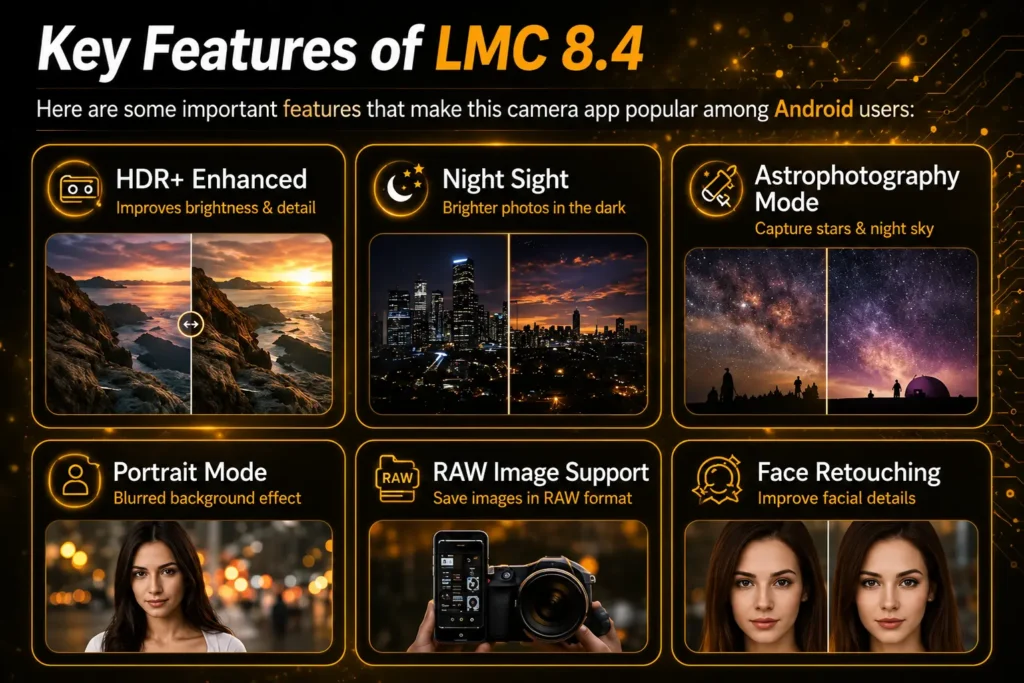
Key Features of LMC Camera App
Astrophotography Mode
Astrophotography mode extends low-light exposure to reveal stars and faint night-sky details more clearly. A tripod prevents movement, helping stacked frames retain sharper points and cleaner foreground textures. Users can photograph dark landscapes without relying on harsh flash or excessive artificial brightening. Availability depends on sensor access, supported exposure times, and the selected configuration profile.
HDR+ Enhanced
HDR+ Enhanced merges additional frames to preserve difficult highlights while lifting useful shadow detail. This helps skies, windows, faces, and dark interiors appear balanced within one photograph. The slower processing tradeoff usually suits landscapes and still subjects better than fast action. Users receive more recoverable detail, reducing the need for aggressive editing afterward later.
Portrait Mode
Portrait mode estimates subject depth, separating people or objects from distracting backgrounds more convincingly. Cleaner edge detection helps hair, clothing, glasses, and shoulders retain a natural outline. The resulting blur draws attention toward subjects without requiring a dedicated interchangeable-lens camera. Good lighting and background separation improve accuracy, especially around transparent or overlapping details.
Face Retouching
Face retouching offers optional smoothing levels for selfies and portraits when the build supports them. Subtle settings can reduce temporary blemishes without removing natural texture or changing facial character. Keeping adjustments conservative produces more believable skin while shortening later editing time. Users retain control because the effect can be reduced or disabled before capturing.
Super Res Zoom
Super Res Zoom combines frame data to preserve finer detail during moderate digital magnification. It can make distant signs, architecture, and everyday subjects appear clearer than basic cropping. Bright light and steady hands generally improve texture reconstruction while reducing visible motion artifacts. Actual zoom quality still depends on sensor resolution, stabilization, lenses, and device processing.
Google Lens Integration
Compatible package variants can connect camera results with Google Lens for visual searches and actions. Users may identify objects, copy text, translate signs, or explore products without manual typing. This integration reduces friction when photography becomes a starting point for finding useful information. Availability depends on the installed package, Google services, regional support, and account settings.
Manual Focus
Manual focus lets photographers choose precise focus distance when autofocus repeatedly selects the wrong subject. It benefits macro scenes, product images, low-contrast subjects, and deliberate foreground-background compositions. Controlled focusing also supports repeatable results when shooting several similar objects or frames. Usable ranges depend on whether the phone exposes calibrated lens controls through Camera2.
White Balance Adjustment
White balance adjustment corrects unwanted yellow, blue, or green casts under difficult mixed lighting. Accurate color temperature helps skin, walls, food, and products resemble their real appearance. Manual control also keeps colors consistent across multiple images captured within one location. Beginners should start with automatic white balance, then change values only when necessary.
Grid Lines and Level Tool
Grid lines help users place horizons, faces, and architectural elements with stronger visual balance. The level tool indicates tilt, making straight landscapes and interior photographs easier to capture. Together, these guides reduce corrective cropping and preserve more usable resolution after shooting. They also teach consistent composition without permanently appearing inside the saved photograph.
Exposure Control
Exposure control lets users brighten dark subjects or protect highlights before pressing the shutter. Small adjustments improve backlit portraits, bright skies, snow, stages, and indoor window scenes. Preview feedback helps photographers judge changes immediately instead of repairing every image later. Moderate corrections usually preserve natural contrast better than extreme brightness or darkness settings.
Timelapse Video
Timelapse video compresses gradual activity into shorter sequences that remain easy to watch and share. It suits sunsets, moving clouds, traffic, construction, plants, and changing public spaces. Selectable speeds help users match recording duration with the pace of each subject. A stable mount improves framing consistency and prevents distracting movement throughout longer captures.
Lens Blur Mode
Lens Blur mode simulates shallow depth by separating a chosen object from its background. It benefits food, flowers, products, and close subjects when face-based portrait detection struggles. Controlled blur creates stronger visual hierarchy and makes simple compositions appear more intentional. Clean edges require adequate light, clear subject separation, and careful camera movement.
Quick Mode Switch
Quick mode switching reduces missed moments by keeping important capture options within immediate reach. Users can move between photo, portrait, night, and video workflows with fewer taps. Faster navigation is especially useful during events, travel, children, pets, or changing light. Available shortcuts and menu behavior can vary between releases, packages, and imported profiles.
Video Stabilization
Video stabilization reduces distracting shake, producing smoother handheld clips during walking or casual movement. Steadier footage looks more watchable on larger screens and requires less correction afterward. Different stabilization modes may balance cropping, motion control, detail, and field of view. Performance depends on sensor data, electronic stabilization support, resolution, frame rate, and hardware.
Zero Shutter Lag (ZSL)
Zero Shutter Lag keeps several recent frames buffered, reducing delay between pressing and capturing. This helps preserve fleeting expressions, gestures, pets, and other brief moments more reliably. Faster capture feels responsive, although selected processing modes may reduce maximum image quality. Support remains hardware-dependent because compatible reprocessing capabilities must be exposed through Camera2.
4K and 8K Video Support
Compatible devices may record 4K video when their sensors, encoders, drivers, and port expose it. Higher resolution preserves detail for cropping, large displays, and selected professional editing workflows. 8K recording should not be promised, because app installation alone cannot enable unsupported hardware. Users should test short clips for heat, dropped frames, stabilization, audio, and storage demands.
How to Set Up LMC 8.4 Config File
- Download an XML profile created for your exact phone model and installed release.
- Extract the download when it arrives inside a ZIP or compressed folder.
- Confirm that the final configuration filename ends with the .xml extension.
- Open internal storage and create a folder named LMC8.4 at the root level.
- Move or copy the XML file into the new LMC8.4 folder.
- Open the camera application and grant the necessary media or file permissions.
- Double-tap the dark area beside the shutter button to open the configuration selector.
- Choose the correct XML filename and tap Restore or Import.
- Restart the application before testing the main, front, ultrawide, and telephoto lenses.
- Remove the configuration and restore defaults when previews, colors, or lenses become unstable.
Different phones require different settings, and the documented configuration directory for recent Hasli releases is /LMC8.4/ within the root of internal storage. Profiles created for earlier releases may work, but they still require testing.
How to Download & Install LMC 8.4 APK
Choose a trusted source and download the package matching your phone. Then enable installation, review permissions, install, configure, and test carefully.
Step 1: Download the Correct LMC 8.4 APK
Select the documented R18 release and confirm its complete filename before downloading. Choose a package variant recommended for your device rather than installing several variants randomly. Where available, compare the file size, SHA-256 checksum, digital signature, source record, and verification date before opening the APK.
Step 2: Allow APK Installation
Open Android settings and allow your browser or file manager to install unknown applications. Enable this permission only for the application handling the downloaded file. Keep Google Play Protect enabled because applications obtained outside Google Play may carry additional security and privacy risks.
Step 3: Install the APK
Open the Downloads folder, select the APK, review the displayed information, and tap Install. Back up existing XML profiles before removing an older package or resolving a signature conflict.
Step 4: Grant Required Permissions
Allow camera access for photographs and microphone access for video recording. Grant photo or media access for saving files, while keeping location permission optional unless geotagging is required. Reject permissions unrelated to the application’s visible photography functions and investigate unexpected requests before continuing.
Step 5: Import an XML Configuration (Recommended)
Begin with default settings to confirm the application opens normally. Import one phone-specific XML profile afterward, restart the application, and compare results before trying another profile.
Step 6: Test Every Camera Lens
Test the main, front, ultrawide, telephoto, and macro cameras individually where available. Also verify photo saving, HDR, Night Sight, Portrait Mode, RAW output, video audio, stabilization, and recording duration. Do not uninstall your stock camera because it may retain better access to proprietary lenses, video modes, slow motion, and manufacturer processing.
LMC 8.4 vs Stock Camera
|
Comparison area |
LMC 8.4 |
Stock camera |
|
Installation |
Requires APK sideloading and manual verification |
Preinstalled and signed by the manufacturer |
|
Device integration |
Depends on Camera2 access, packages, drivers, and configurations |
Directly integrated with proprietary hardware and firmware |
|
HDR processing |
Offers configurable multi-frame processing and advanced tuning |
Usually optimized automatically for the specific phone |
|
Low-light photography |
May recover more shadows or reduce noise on compatible devices |
Often faster and more consistent, but quality varies by manufacturer |
|
Portrait photography |
Provides adjustable processing and potentially natural background separation |
Usually offers stronger proprietary depth and subject integration |
|
Color rendering |
Can be customized through libraries and XML profiles |
Uses the manufacturer’s fixed or semi-adjustable color science |
|
RAW capture |
Available when exposed by hardware and Camera2 capabilities |
Supported only on selected models or professional modes |
|
Manual controls |
Extensive controls may be available through advanced menus |
Usually simpler, with fewer controls on budget devices |
|
Auxiliary lenses |
May require a matching package, lens IDs, or configuration |
Normally supports every factory-enabled camera lens |
|
Photo processing speed |
Can be slower during Enhanced HDR or Night Sight |
Usually tuned for faster processing and predictable responsiveness |
|
Video recording |
Quality and stabilization vary considerably by device |
Commonly provides better stabilization, audio, slow motion, and reliability |
|
Updates |
Installed and updated manually |
Delivered through system or application-store updates |
|
Ease of use |
Flexible but may require troubleshooting and configuration |
Designed for immediate everyday use |
|
Best use case |
Experimental photography, custom processing, and device-specific tuning |
Reliable daily capture, proprietary modes, and dependable video |
|
Main limitation |
Compatibility cannot be guaranteed across Android devices |
Advanced customization and Google-style processing may be limited |
Which Processor Works Best with LMC 8.4?
Snapdragon devices often provide the most predictable compatibility because many ports and community profiles target Qualcomm camera stacks. Modern Dimensity, Exynos, Tensor, and selected Helio phones can also perform well with suitable builds. Processor branding alone never guarantees results, because Camera2 implementation, vendor drivers, sensors, and lens identifiers matter equally. A powerful chipset mainly shortens HDR processing, improves preview responsiveness, and reduces heat during demanding captures. Choose by tested phone model and working configuration rather than assuming every processor family behaves identically. Camera2 hardware levels and advertised capabilities determine whether applications can use manual controls, RAW output, reprocessing, and other advanced camera functions.
Best Camera Settings for LMC 8.4
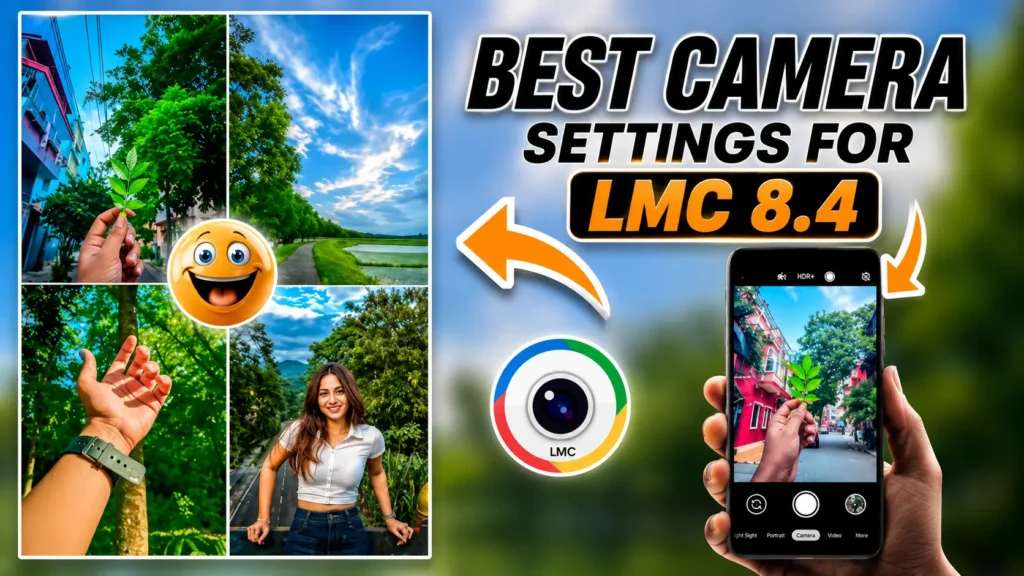
HDR Settings
Keep standard HDR+ enabled for everyday scenes requiring balanced highlights, shadows, and manageable processing time. Use Enhanced mode for static landscapes, interiors, and difficult backlighting where maximum detail matters. Return to standard processing for movement, because additional frames can create blur or ghosting.
Exposure Compensation
Begin at zero exposure compensation, then adjust slightly after checking highlights within the live preview. Lower exposure protects bright skies, while modest positive values can clarify strongly backlit faces. Avoid universal presets because metering behavior differs across sensors, profiles, lighting, and camera lenses.
White Balance
Automatic white balance offers the safest starting point for daylight, mixed scenes, and changing conditions. Try Google-style AWB when supported if skin tones or neutral surfaces appear consistently inaccurate. Manual temperature changes help controlled lighting, but excessive corrections can create unnatural color casts.
Sharpness
Keep sharpening near default levels to preserve detail without producing halos around high-contrast edges. Reduce it for portraits when pores, hair, or fabric appear excessively harsh and processed. Increase values cautiously for landscapes, checking foliage and text at full resolution afterward.
Saturation
Moderate saturation keeps skies, plants, food, and skin closer to their real appearance. Raise color intensity slightly only when the default profile consistently looks flat or muted. Compare several scenes before saving changes, because one adjustment affects every supported lens differently.
Noise Reduction
Use lighter noise reduction in daylight to protect hair, leaves, fabric, and fine textures. Increase processing gradually for indoor or night scenes where visible grain becomes distracting. Heavy denoising may create waxy surfaces, so inspect faces and shadows before keeping changes.
Portrait Settings
Use soft, even lighting and leave visible distance between subjects and their backgrounds. Keep blur strength moderate so hair, glasses, shoulders, and clothing retain believable edges. Test both front and rear cameras because depth behavior may differ between available lenses.
Night Sight Settings
Hold the phone steady until capture and processing finish, especially within darker environments. Use a tripod or solid support for longer exposures, astrophotography, and sharper background detail. Avoid moving subjects when possible, because stacked frames can produce softness or duplicated edges.
Video Recording
Choose 1080p for longer recordings when heat, storage, battery consumption, or stability matter. Use 4K only after confirming smooth frame rates, reliable audio, and working stabilization. Treat 8K as device-specific, because software cannot unlock resolution unsupported by hardware or drivers.
Common LMC 8.4 Problems and How to Fix Them
|
Problem |
Solution |
|---|---|
|
LMC 8.4 Keeps Crashing |
Clear the app data, remove incompatible XML profiles, and test another proven package variant. |
|
Black Camera Preview |
Grant camera permission, remove the current profile, and try another compatible package variant. |
|
Camera Stuck on Loading Screen |
Clear cached data, restart your phone, and launch the camera with default settings. |
|
XML Configuration Does Not Load |
Verify the XML folder location, app version, filename extension, and device compatibility before loading the configuration. |
|
Camera Freezes While Taking Photos |
Reduce intensive image processing, disable unstable features, and use a lighter XML profile. |
|
Photos Are Not Saving |
Grant media/storage permission, check available storage space, and verify the save location. |
|
Video Recording Stops Unexpectedly |
Lower the video resolution, free up storage, close background apps, and keep the device cool. |
|
Front Camera or Additional Lenses Are Missing |
Try a different package name and ensure auxiliary lens access is supported on your device. |
|
HDR+ Is Not Working |
Reset image processing settings and verify that your device supports Camera2 API before changing camera libraries. |
|
Night Sight Is Missing |
Install a compatible LMC 8.4 build, reset app settings, and confirm Night Sight is available for your device. |
|
RAW Photos Are Not Being Saved |
Enable RAW capture, grant storage permission, and ensure sufficient free storage is available. |
|
Parse Error During Installation |
Download the APK again and confirm that your Android version is compatible with the app. |
|
“App Not Installed” Error |
Remove conflicting app packages, free up storage space, and install the correct package variant for your device. |
Alternatives to Leica Mod Camera 8.4
- GCam Mod: Other GCam ports may offer broader compatibility or simpler device-specific tuning.
- Open Camera: pen Camera provides transparent controls, broad support, and an open-source foundation.
- Camera FV-5: Camera FV-5 emphasizes DSLR-style manual controls for deliberate mobile photography workflows.
- ProCam X: ProCam X combines manual exposure tools with an approachable shooting interface.
- Footej Camera: Footej Camera offers lightweight controls and practical everyday photo and video features.
How to Install XML Config Files
- Confirm the installed release and APK package before choosing a configuration.
- Find a profile created specifically for your phone model whenever possible.
- Download the Config File and extract it when the profile is compressed.
- Check that the extracted filename ends in .xml, not .zip or .txt.
- Create the LMC8.4 folder at the root of internal storage.
- Copy the XML profile into that folder without renaming its extension.
- Open the camera application and double-tap beside the shutter control.
- Select the profile and choose Restore, Load, or Import.
- Close and reopen the application after the settings are applied.
- Photograph the same daylight, indoor, portrait, and night scenes for comparison.
- Test every available lens because one profile may not configure all cameras correctly.
- Restore default settings immediately when the preview becomes black or unstable.
Pros and Cons
Pros
Cons
Conclusion
LMC 8.4 can expand mobile photography controls and improve processing on carefully matched Android devices. Its strongest benefits include configurable HDR, low-light capture, portrait processing, and flexible XML-based tuning options. Those advantages remain dependent on Camera2 support, camera drivers, package selection, sensors, and tested configurations. Users should therefore compare results against their stock camera instead of assuming automatic universal improvements.
Download only from a traceable source, keep Play Protect enabled, and review every requested permission. Begin with default settings, create backups, import one compatible profile, and test every available lens. Retain the stock camera for dependable video, proprietary modes, or situations where the port becomes unstable. A responsible trial provides the clearest answer about whether this camera application suits your phone.